本文前提与目的
- 前提:拥有github账号,已经下载好R,Rstudio与R包
devtools - 目的:学会用Rstudio从Github克隆项目,将本地项目上传到github远程仓库
- 参考:Let’s Git started | Happy Git and GitHub for the useR
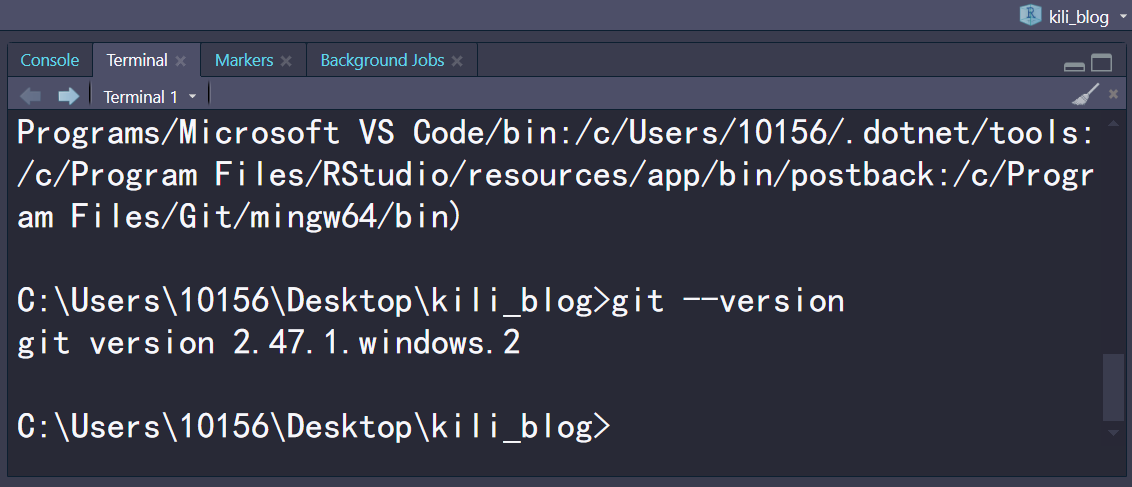
- 注意:非R语言代码的命令在Rstudio的terminal输入即可,如图:
连接Rstuido与Github
尽管我在几年前便已经学习了如何把Rstuido与GitHub连接,把本地project推送到远程仓库,但推送过程总是出现些不明不白的bug,参考Let’s Git started | Happy Git and GitHub for the useR后总算把工作流优化好了,故写此文分享经验.
安装git
安装 Git for Windows(也称为“Git Bash”),直接接受默认配置即可.
如果已有git想要更新的话,输入命令git update-git-for-windows
然后输入以下R代码(注意把名字和邮箱换成自己的):
## install if needed (do this exactly once):
## install.packages("usethis")

library(usethis)
use_git_config(user.name = "Jane Doe", user.email = "jane@example.org")git就配置完成了,可选项:下载GitKraken作为git客户端,方便获得最近的提交历史记录、分支和差异的漂亮图形概览,且免费.
配置github
有两种方式,https与ssh,不过https很容易连接失败失败,故今天我只介绍ssh方法,但是获取PAT仍是有好处的,故我们先配置好PAT.
先运行下面代码获取personal access token
usethis::create_github_token()点击 Generate token 按钮。保存此令牌,因为它只会显示一次。
之后运行gitcreds::gitcreds_set()将该令牌复制粘贴即可,结果应该是这样:
? Enter password or token: ghp_xxxxxxxxxxxxxxxxxxxxxxxxxxxxxxxxxxxx
-> Adding new credentials...
-> Removing credentials from cache...
-> Done.
完成后,我们来创建 SSH 密钥对,在Rstudio菜单栏中依次点击_Tools > Global Options…> Git/SVN > Create SSH Key_,单击“create”,RStudio 将生成一个 SSH 密钥对,存储在文件 ~/.ssh/id_rsa 和 ~/.ssh/id_rsa.pub 中。之后还是在该界面中,点击view public key,将公钥复制.
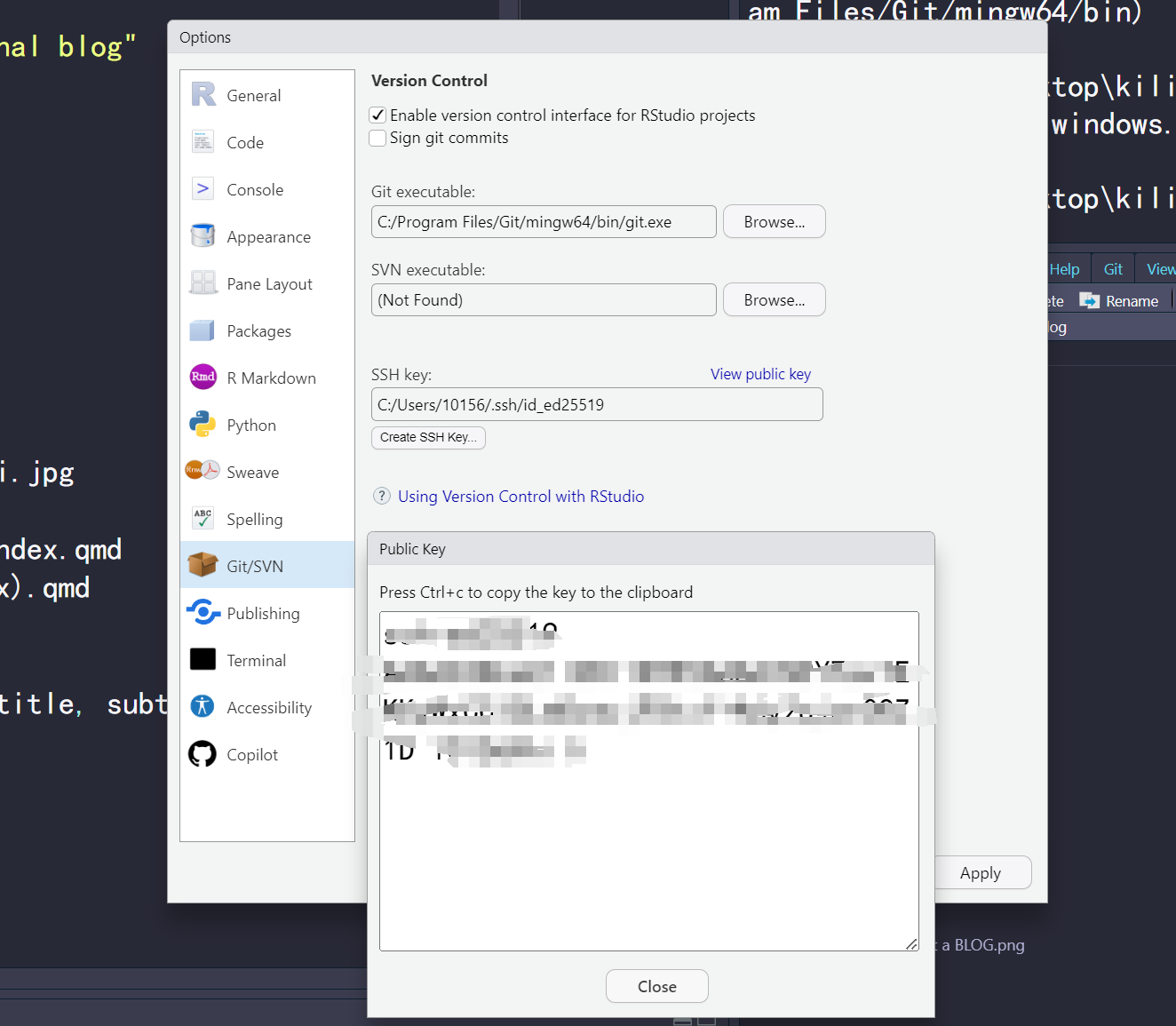
现在,我们在 GitHub 上注册公钥。单击右上角的个人资料图片,然后转到 _Settings > SSH and GPG keys_。点击 “New SSH key”。将您的公钥粘贴到 “Key” 框中。给它一个标题,点击 “Add SSH key”(添加 SSH 密钥)。理论上已经完成了!可以使用 ssh -T git@github.com 测试与 GitHub 的连接。
推送本地仓库
将Rstudio project放在Github上有两种方式,GIthub优先与本地优先.
Github优先(即这是一个全新的项目)
在GIthub上创建一个新仓库,单击显示“<> Code”的绿色大按钮,复制ssh URL,如git@github.com:sysukili/inga.git,之后在Rsutdio上创建新项目,点击version control,点击Git,将刚才的URL粘贴上去即可,至于克隆别人的项目也是同理.(你可以试试克隆这个项目)
now,开始coding把.
本地优先(即这是一个已有项目,你已经做了很多工作)
第一种方法:把现有项目的所有文件复制粘贴到刚才克隆到本地的文件即可.
注意把原r project删掉
第二种:
进入现有r project
在 R 控制台中,调用 usethis::use_git() ,
In RStudio, go to Tools > Project Options … > Git/SVN. Under “Version control system”, select “Git”. Confirm New Git Repository? Yes!
之后输入命令git init,现在RStudio 应该有一个 Git 窗格。
再然后: - Click the “Git” tab in upper right pane - Check “Staged” box for all files you want to commit. - Default: stage everything - When to do otherwise: this will all go to GitHub. So consider if that is appropriate for each file. You can absolutely keep a file locally, without committing it to the Git repo and sending to GitHub. Just let it sit there in your Git pane, without being staged. No harm will be done. If this is a long-term situation, list the file in .gitignore. - If you’re not already in the Git pop-up, click “Commit” - Type a message in “Commit message”. - Click “Commit”
做好这一切后,在R的console中运行:
usethis::use_github(protocol="ssh")
#> ✓ Creating GitHub repository 'jennybc/myrepo'
#> ✓ Setting remote 'origin' to 'https://github.com/jennybc/myrepo.git'
#> ✓ Pushing 'main' branch to GitHub and setting 'origin/main' as upstream branch
#> ✓ Opening URL 'https://github.com/jennybc/myrepo'
now,你会在Github中自动创建一个连接本地项目的新仓库,在项目中随意敲些代码或字,在git窗格一个个勾选,commit后,pull and push,之后看看Github上的仓库是否有更新吧.
小tip
相比直接编写readme.md文件,可以创建一个readme.qmd的quarto文件,yaml如下:
---
title: hhh
date: "2025-01-01"
format: gfm
---之后便用熟悉的语法愉快地编写readme文件吧,完成后记得render生成readme.md文件,这样便可以方便地在github仓库界面演示R代码了(当然python和Julia也行).
另外,国内网络直接GitHub很容易导致连接失败,推荐开魔法push.或者如果推送失败的话…还有非常质朴的一招,开手机热点…